
Form Editor
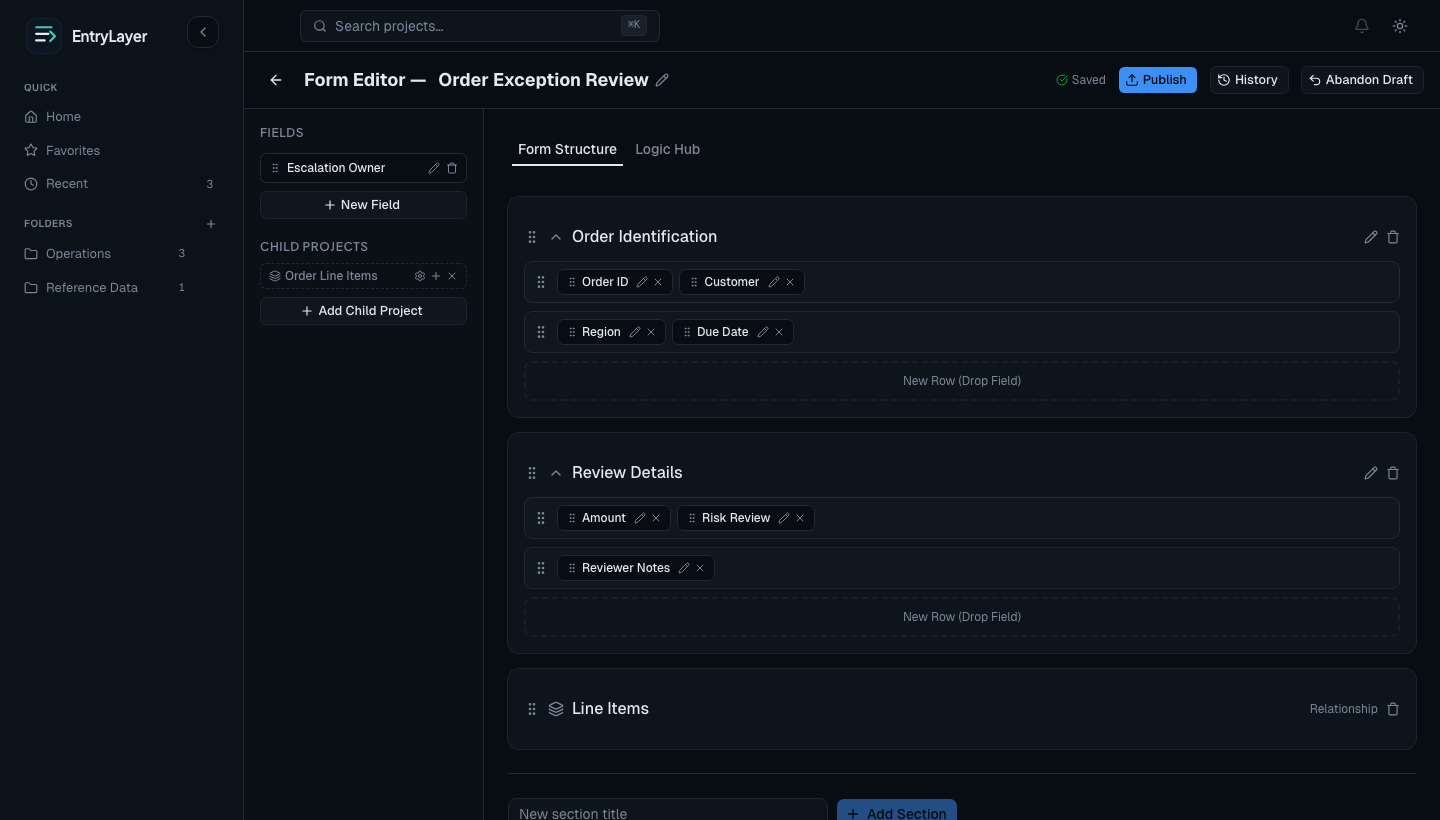
The Form Editor is EntryLayer’s main builder workspace. It is where build-capable users design how a project looks and behaves before those changes go live.
When to use this guide
Section titled “When to use this guide”Use this guide when you need to:
- design or reorganize a project form
- create or update fields
- configure validations and display behavior
- manage index columns and form logic
- add relationship sections
- publish or abandon draft form changes
Who can use it
Section titled “Who can use it”The Form Editor is for builders, implementation leads, project owners, and admins configuring project structure.
Users without build access are redirected back to the project workspace instead of seeing a limited read-only editor.
Editor structure
Section titled “Editor structure”| Area | Purpose |
|---|---|
| Toolbar | Back navigation, title editing, save status, publish, history, and abandon draft. |
| Left sidebar | Field inventory, available fields, relationship controls, and field actions. |
| Form Structure tab | Visual layout of sections, rows, and placed fields. |
| Index Columns tab | Business columns shown in the project queue. |
| Logic Hub | Cross-field rules for visibility, requiredness, and enabled behavior. |
Draft and publish safety
Section titled “Draft and publish safety”| Action | Effect |
|---|---|
| Draft edit | Saves builder changes without changing the live form. |
| Publish | Makes the current draft the user-visible form. |
| Abandon Draft | Discards unpublished changes and returns to the last published form. |
| History | Opens the form history for audit and review. |
Use draft preview in Submission Detail to validate behavior before publishing.
Form Structure
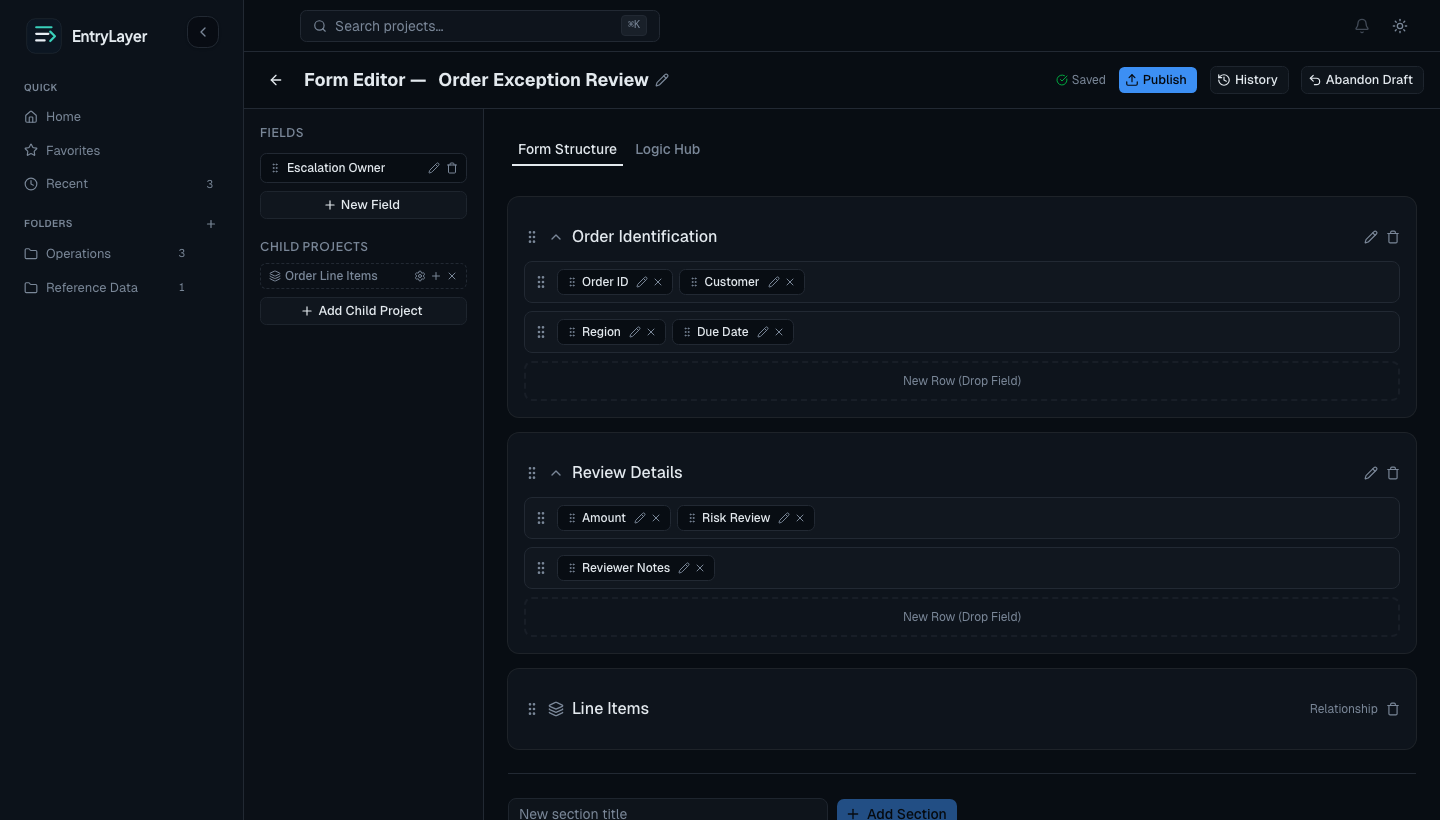
Section titled “Form Structure”Builders can:
- add sections
- add rows inside sections
- drag fields into rows
- move fields between rows
- reorder fields, rows, and sections
- remove fields from visible layout without deleting the underlying field definition
Field inventory
Section titled “Field inventory”The field list acts as both a palette and a management surface.
Builders can:
- create new fields
- place fields on the form
- open field settings
- extract fields from Variant sources where supported
- archive fields where allowed
Source-managed fields are more constrained because they reflect source-defined shape.
Field properties
Section titled “Field properties”Depending on field type, builders can configure:
- title and description
- required state
- multiline behavior
- date/time behavior
- select options
- numeric formatting and ranges
- default values
- read-only behavior
- primary key participation
- field-group association
Use Validation Rules for the builder workflow across Field Editor validation, Logic Hub rules, Preview Draft, and Logic Preview. Select options should be treated as title/value objects. If using the SQL API, see Field Types and SQL API Contracts for payload contracts.
Stable ids and field registry
Section titled “Stable ids and field registry”EntryLayer tracks fields with stable ids so automation and runtime behavior can safely reference them across layout changes.
| Rule | Why it matters |
|---|---|
| Field ids are stable | Validations, rules, moves, and publish operations can reference the same field. |
| Field ids are not reused | Archived fields should not become ambiguous later. |
| Field type is effectively fixed after creation | Type changes should be handled by creating a replacement field. |
| Source-backed fields are protected | Builders should not treat source fields like fully manual fields. |
Index Columns
Section titled “Index Columns”Use Index Columns to decide which fields appear in the project queue.
Good index columns make queues easier to scan by showing the business identifiers, status cues, and dates users need most often.
Logic Hub
Section titled “Logic Hub”Use Logic Hub to manage rules in one place.
Rules can affect:
- field visibility
- required state
- enabled/read-only behavior
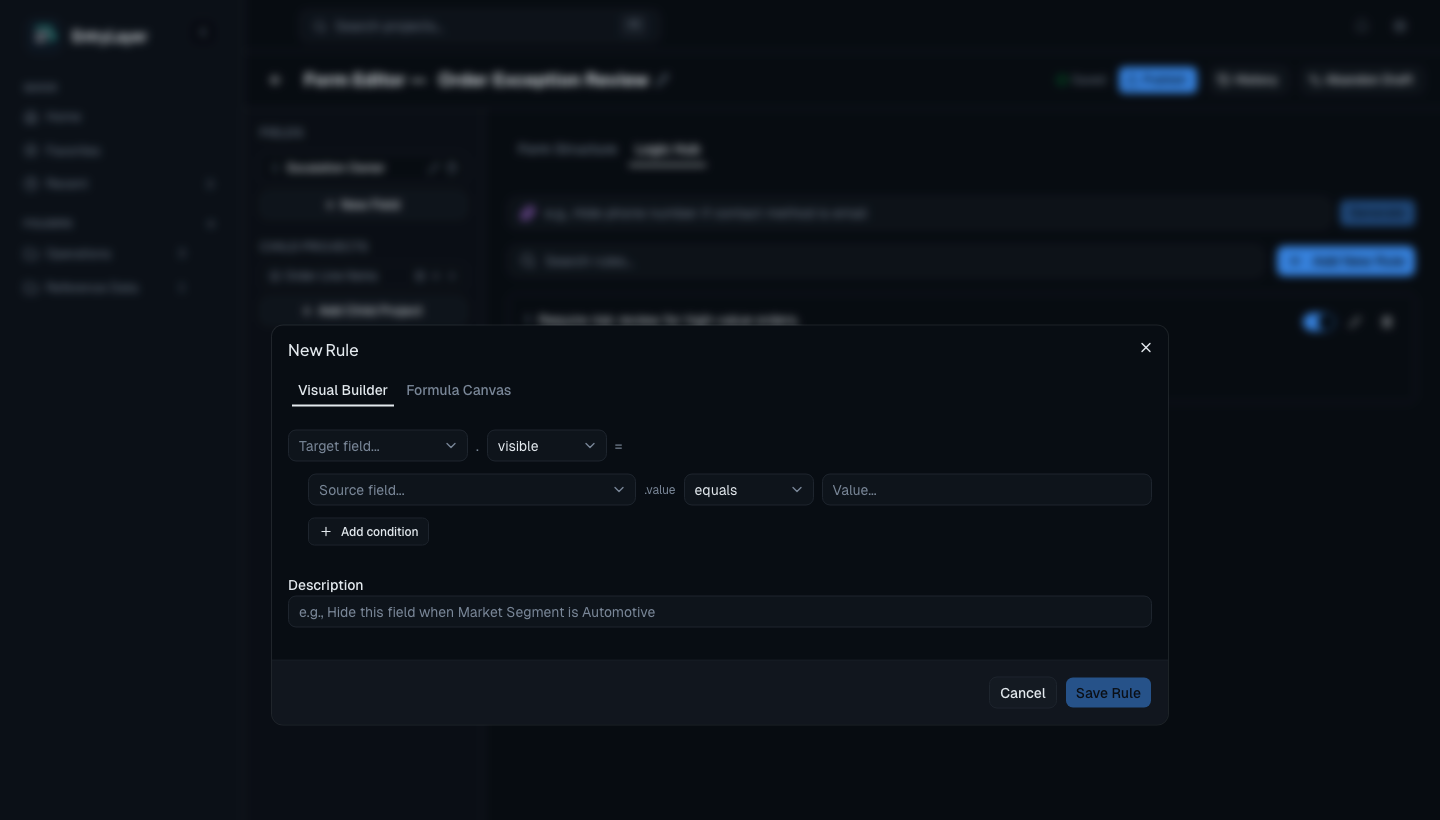
Use Cortex & AI Boundary before putting natural-language rule prompts into Cortex. Do not include PII, secrets, source row values, or submission values in prompts.
Relationships
Section titled “Relationships”Relationship sections represent child projects inside a parent form. They are not ordinary field sections.
Builders can use relationship sections to:
- create a new child project
- link an existing project
- manage join key mapping
- show related child records inside Submission Detail
Practical workflow
Section titled “Practical workflow”- Open Form Editor from Project Workspace.
- Review the current draft/publish state.
- Organize sections, rows, and fields.
- Configure field behavior, validations, and primary keys.
- Choose index columns.
- Add logic or relationship sections.
- Preview behavior through Submission Detail.
- Publish when ready.