
Workflow & Review
Use this guide to understand how review states work, what changes when workflow is enabled, and how the experience appears across queues, dashboards, and individual submissions.
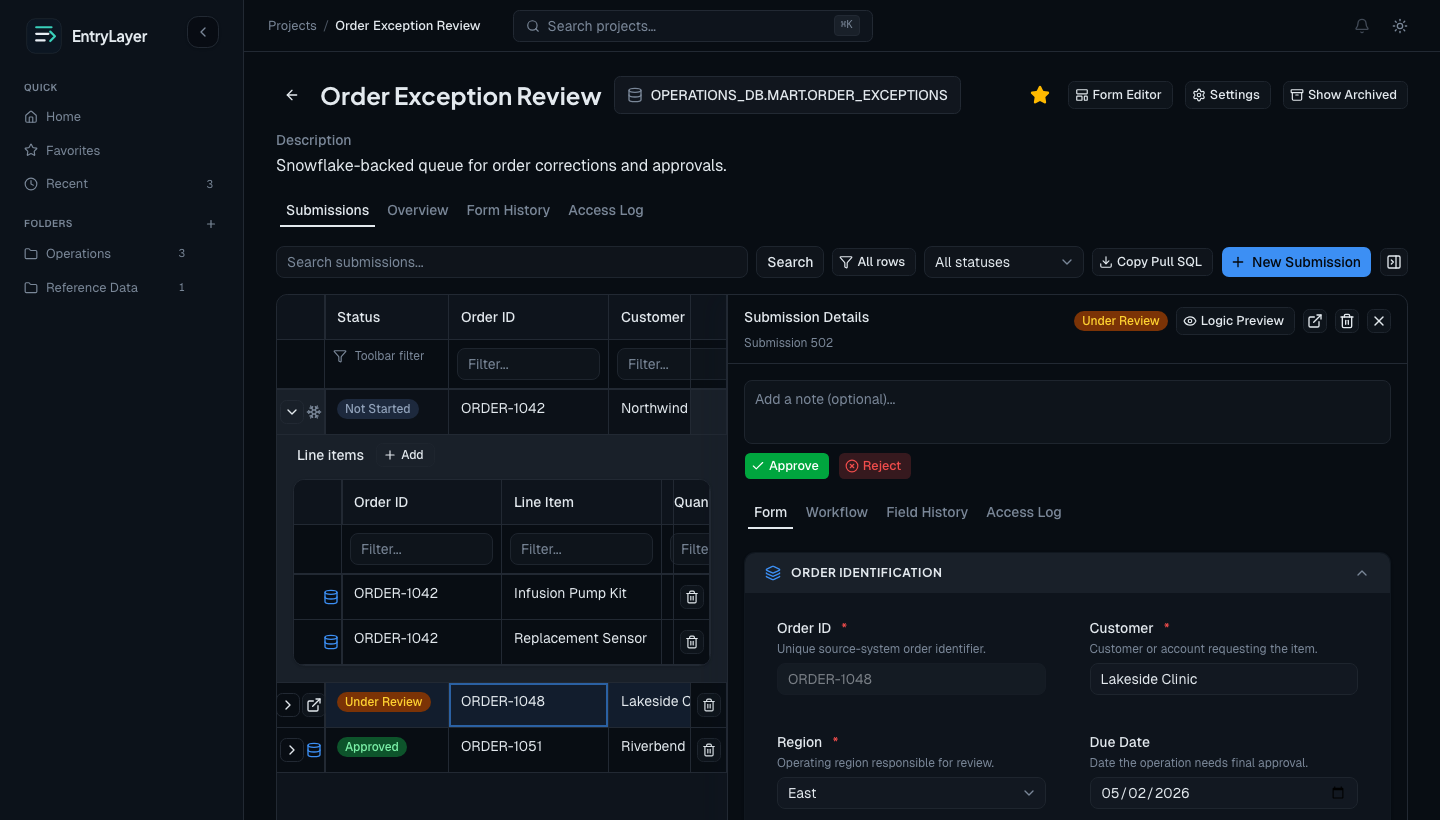
When to use this guide
Section titled “When to use this guide”Use this guide when you need to:
- decide whether to enable workflow
- explain what each state means
- understand read-only behavior
- review approval/rejection history
- troubleshoot why an action does or does not appear
Where workflow is enabled
Section titled “Where workflow is enabled”Workflow is a project-level setting. Teams can enable it during project creation or later from Project Settings.
State flow
Section titled “State flow”not_started (virtual source row) -> draft -> submitted -> under_review -> approved
rejected can return work for correction and resubmission depending on project rules.Core states
Section titled “Core states”| State | Meaning |
|---|---|
not_started | Source-backed row is visible, but no local managed submission exists yet. |
draft | Record is being prepared and has not entered formal review. |
submitted | Creator has handed the record off for review. |
under_review | Reviewer has actively started review. |
approved | Record is accepted for the current process. |
rejected | Record was reviewed but not accepted; correction may be needed. |
See Workflow States for the exact reference.
What workflow changes
Section titled “What workflow changes”| Surface | Workflow effect |
|---|---|
| Project queues | Adds status columns, status filters, and queue segmentation. |
| Project overview | Enables workflow-aware counts, summaries, and charts. |
| Submission Detail | Adds status badges, transition actions, notes, history, and read-only behavior. |
| Notifications | Enables review-specific notification options. |
Actions and permissions
Section titled “Actions and permissions”The UI only shows valid next actions for that user and record. Actions depend on:
- current state
- user permissions
- workflow configuration
- archive state
- field or record restrictions
Common actions include submit, start review, approve, reject, return to submitted, reopen for editing, and return to draft.
Notes and rejection reasons
Section titled “Notes and rejection reasons”Workflow transitions can include notes. Teams use these for reviewer comments, approval context, escalation notes, and rejection reasons.
These notes become part of the workflow history and help preserve the business reason behind a transition.
Read-only behavior
Section titled “Read-only behavior”Workflow can make a record fully or partially read-only.
Examples:
- draft records are usually open to editing
- records under review may be locked to normal contributors
- approved records are often treated as stable outcomes
Submission Detail should explain read-only state with banners or status messaging rather than silently disabling controls.
Analytics and history
Section titled “Analytics and history”Workflow shapes the Project Workspace overview and history tabs.
Managers can use workflow metrics to understand:
- how much work is still draft
- how much work is under review
- how many records are approved or rejected
- how much source-backed work is still
not_started
Workflow history answers who moved a record, when, and with what note.
Practical workflow
Section titled “Practical workflow”- Create or open a submission.
- Complete required fields while in
draft. - Submit for review.
- Reviewer moves the record to
under_review. - Reviewer approves or rejects.
- If rejected, revise and resubmit where project rules allow.