
User Guide
EntryLayer is organized around connected workspaces: the Projects home page, project workspaces, the form editor, project settings, and submission detail. This guide is the broad product tour before you move into a focused workflow guide.
When to use this guide
Section titled “When to use this guide”Use this guide when you want to:
- orient a new user after they first open the app
- explain how product areas relate to each other
- understand which guide to read next
- troubleshoot a high-level access or workflow question
Access layers
Section titled “Access layers”Your experience is shaped by four layers:
| Layer | What it means |
|---|---|
| Snowflake app role | Lets your Snowflake role open or administer the installed Native App. |
| Seat type | Controls whether you can view, act, build, or administer product surfaces. |
| Project permissions | Control actual record access such as can_read, can_edit, and can_manage. |
| Snowflake source access | Controls source rows and values through grants, row access policies, and masking policies. |
Important: admin seat and can_manage do not automatically grant submission visibility.
Start on Projects home
Section titled “Start on Projects home”The Projects home page is the main landing surface for the app.
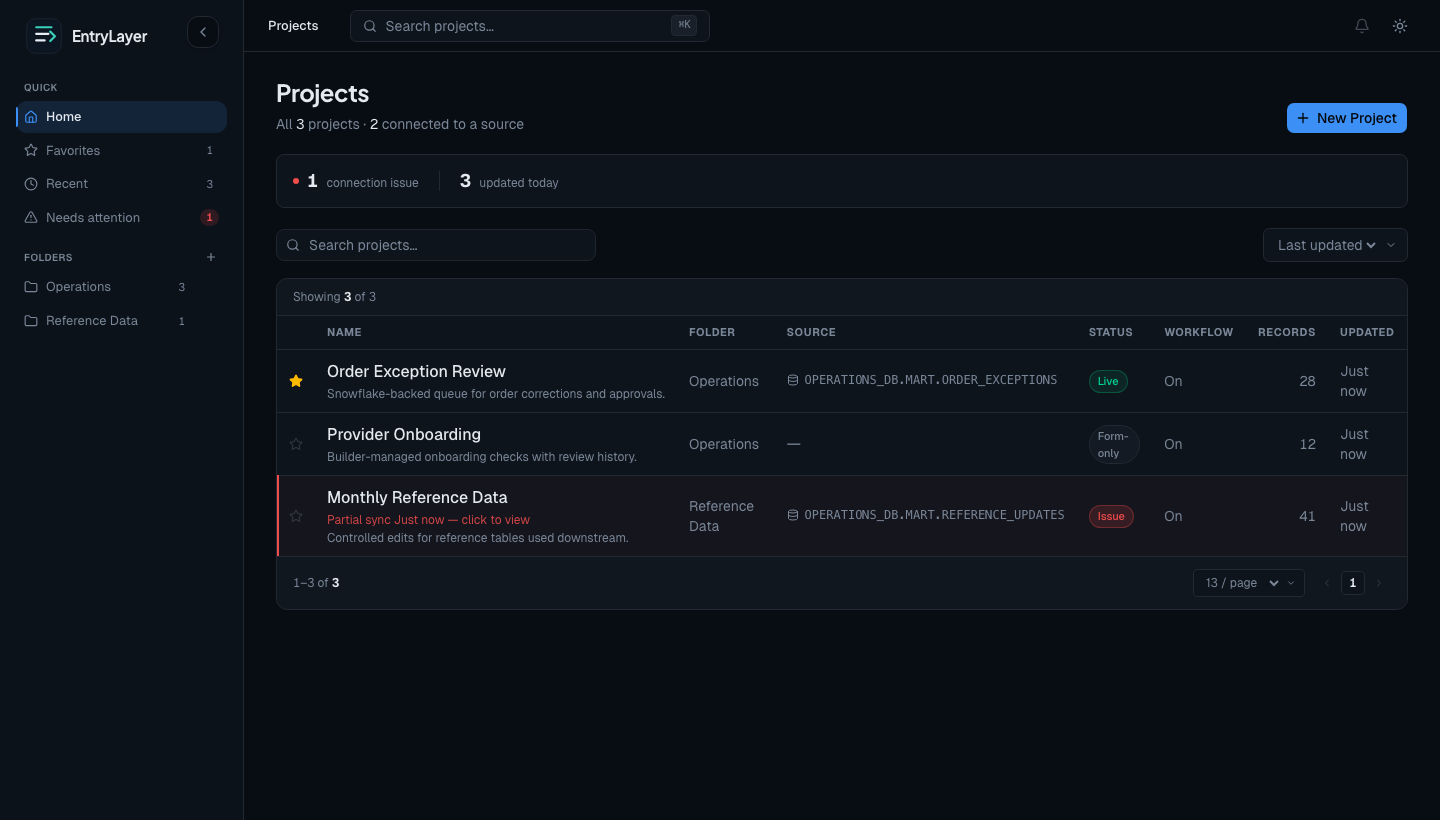
Use it to:
- search projects by name
- switch between card and list views
- sort by recent activity, title, or saved preferences
- open favorites quickly
- create a project if you have a
buildoradminseat
Build/admin users may also see recent workspace activity.
Create a project
Section titled “Create a project”Users with build access can create projects from:
- Snowflake tables or views
- semantic views
- CSV or Excel files
- a blank form
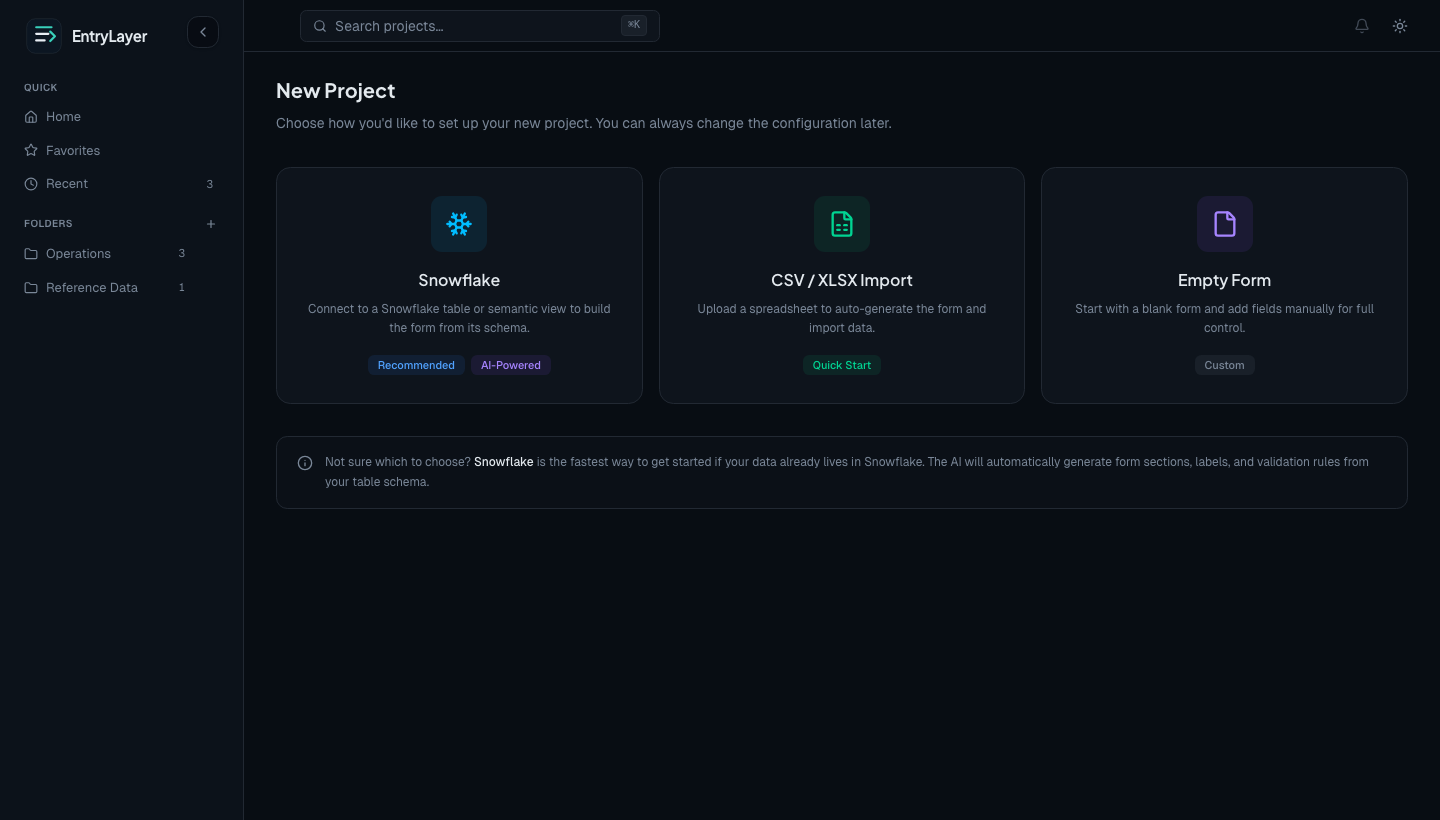
Snowflake and file-based paths can generate an initial form structure. Blank projects create a shell that builders configure manually.
Work inside a project
Section titled “Work inside a project”Opening a project takes you to the Project Workspace, the operational hub for that project.
The workspace can include:
- a submissions queue
- a Record Details drawer for reviewing the selected row without leaving the queue
- workflow status filtering
- project overview metrics
- form history
- access activity
- builder shortcuts to Form Editor and Settings
If the project is source-connected, untouched Snowflake rows can appear as virtual submissions before local app-managed submission state exists.
Build and configure
Section titled “Build and configure”Builders use:
- Form Editor to design layout, fields, validations, rules, index columns, and relationships
- Project Settings to configure workflow, source settings, primary keys, permissions, pull access, and archive/restore behavior
Builder changes to form design happen in a draft first. Users do not see draft form changes until the draft is published.
Work a record
Section titled “Work a record”Selecting a row in the project queue opens the Record Details drawer. The drawer is useful for quick review or light work while the queue remains visible. Opening the full Submission Detail page gives the record more space for longer forms, child records, history review, and focused workflow actions.
Users may be able to:
- view or edit fields
- move records through workflow
- work related child records
- review field history and access history
- see why a record is read-only
The page adapts based on permissions, workflow state, archive state, field-group restrictions, logic rules, and whether the row is virtual or materialized.
Workflow and review
Section titled “Workflow and review”Workflow turns a project from open record entry into a review process. Common states include:
draftsubmittedunder_reviewapprovedrejectednot_startedfor untouched source-backed virtual rows
See Workflow & Review for the user flow and Workflow States for exact state behavior.
Snowflake-backed behavior
Section titled “Snowflake-backed behavior”Source-connected projects keep source data in Snowflake and use EntryLayer app state for local workflow, audit, and managed edits.
| Behavior | What to remember |
|---|---|
| Source rows | Stay in customer Snowflake objects until app-managed state is needed. |
| Virtual submissions | Let source-backed rows appear in queues before materialization. |
| Masking and row access | Continue to be enforced by Snowflake. |
| Extracts | Use documented pull-based SQL surfaces rather than app-owned push/write-back. |
Practical next steps
Section titled “Practical next steps”- Open Project Workspace to understand queues and tabs.
- Open Submission Detail to understand record work.
- Read Form Editor if you build forms.
- Read Snowflake Integration if you administer source access.