
Submission Detail
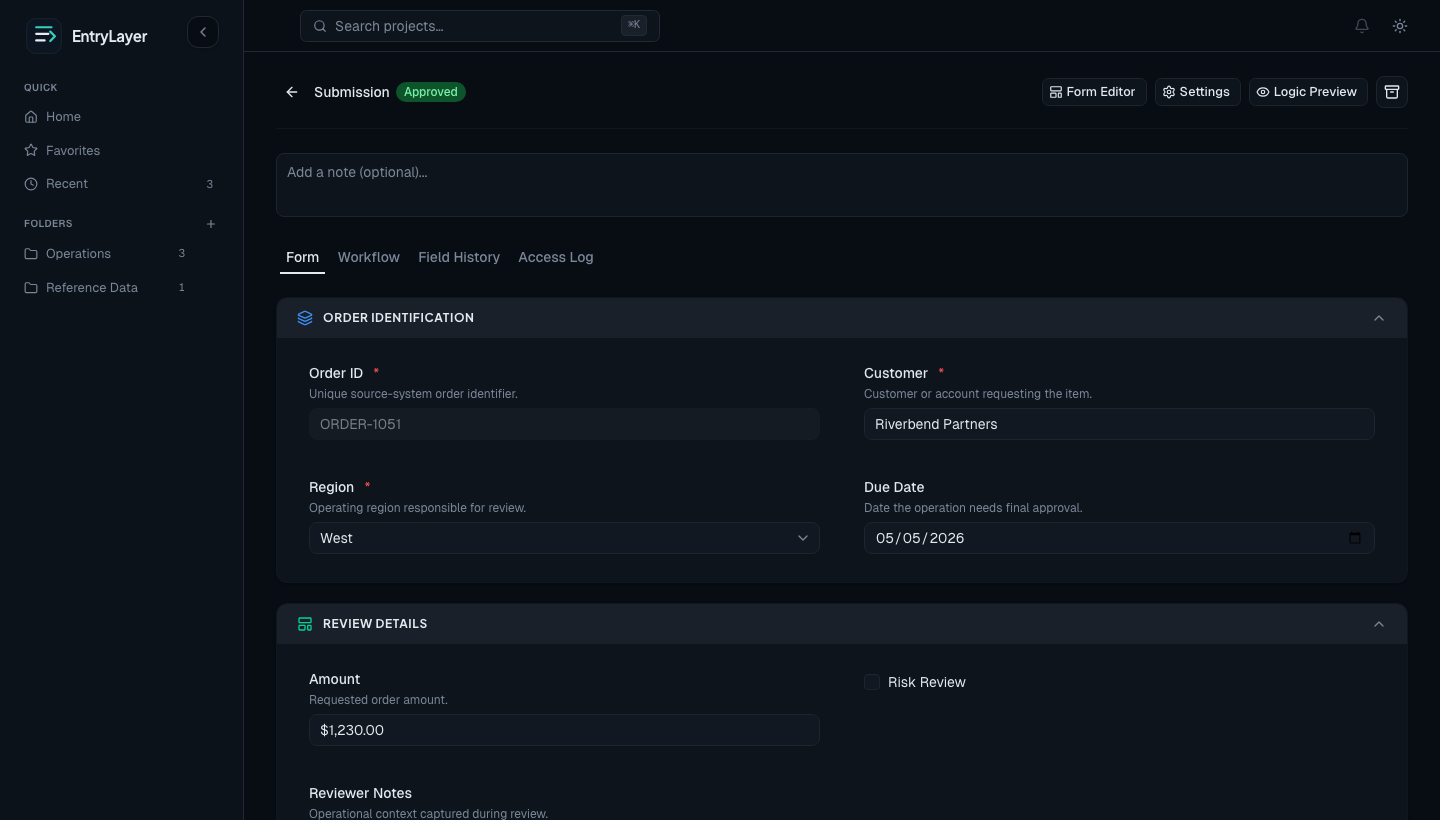
The Submission Detail page is where users view, edit, review, and investigate a single record.
When to use this guide
Section titled “When to use this guide”Use this guide when you need to understand:
- why a record is editable or read-only
- when to use the project drawer vs the full record page
- how workflow actions appear
- how virtual rows become materialized submissions
- how child records appear inside a parent
- where field, workflow, and access history are reviewed
What shapes the experience
Section titled “What shapes the experience”| Factor | Effect |
|---|---|
| Seat type | Determines whether the user can view, act, build, or administer product surfaces. |
| Project permissions | Determine record visibility and edit/delete/manage actions. |
| Workflow status | Can lock records or expose transition actions. |
| Archive state | Makes records read-only for normal operations. |
| Field groups | Can hide or lock individual fields. |
| Form logic | Can hide, require, or disable fields. |
| Snowflake source access | Snowflake row access and masking policies can affect source-backed values. |
Drawer vs full page
Section titled “Drawer vs full page”Users often first open a record from the Project Workspace grid. That opens the Record Details drawer so they can inspect or lightly work a row while keeping the queue visible.
| Surface | Best use |
|---|---|
| Project Workspace grid | Find, filter, sort, and select records. |
| Record Details drawer | Quick record review, small edits, workflow context, and permission/read-only explanation without leaving the queue. |
| Full Submission Detail page | Focused record work, longer forms, child-record sections, history review, and deep workflow actions. |
The drawer and full page use the same access model. If a user does not have can_read, the drawer should not reveal record values just because they can open the project shell or manage settings.
Toolbar and banners
Section titled “Toolbar and banners”The toolbar can include:
- back navigation
- workflow status badge
- Form Editor and Project Settings shortcuts for builders
- Logic Preview for builders
- materialize/edit action for virtual records
- save status
- archive or restore actions where allowed
Banners explain important context such as:
- missing permission
- read-only workflow state
- archived record mode
- draft preview mode
- logic preview mode
Layout modes
Section titled “Layout modes”Submission Detail can render in two main layouts:
| Layout | Best for |
|---|---|
| Standard layout | Shorter or medium-complexity forms where users benefit from seeing the whole record. |
| Multi-step layout | Longer forms or guided review flows where users should work one section at a time. |
Both layouts use the same underlying form and permission model.
Field behavior
Section titled “Field behavior”Configured fields become live controls in Submission Detail.
Common field patterns include:
- text and multiline text
- numeric values
- dates and date-times
- checkboxes
- select and multi-select controls
- labels
- Variant display fields
- lookup-backed fields
The field renderer respects field type, required state, read-only state, field-group restrictions, form logic, workflow state, and masking state.
Logic Preview
Section titled “Logic Preview”Builders can use Logic Preview to inspect how form rules affect the page.
When logic preview is active:
- hidden fields can appear as ghosted placeholders
- rule-driven behavior is easier to inspect
- source fields used by rules can be marked
- dynamically required fields can be called out
- rule tooltips can explain what changed
- the page is read-only for safe analysis
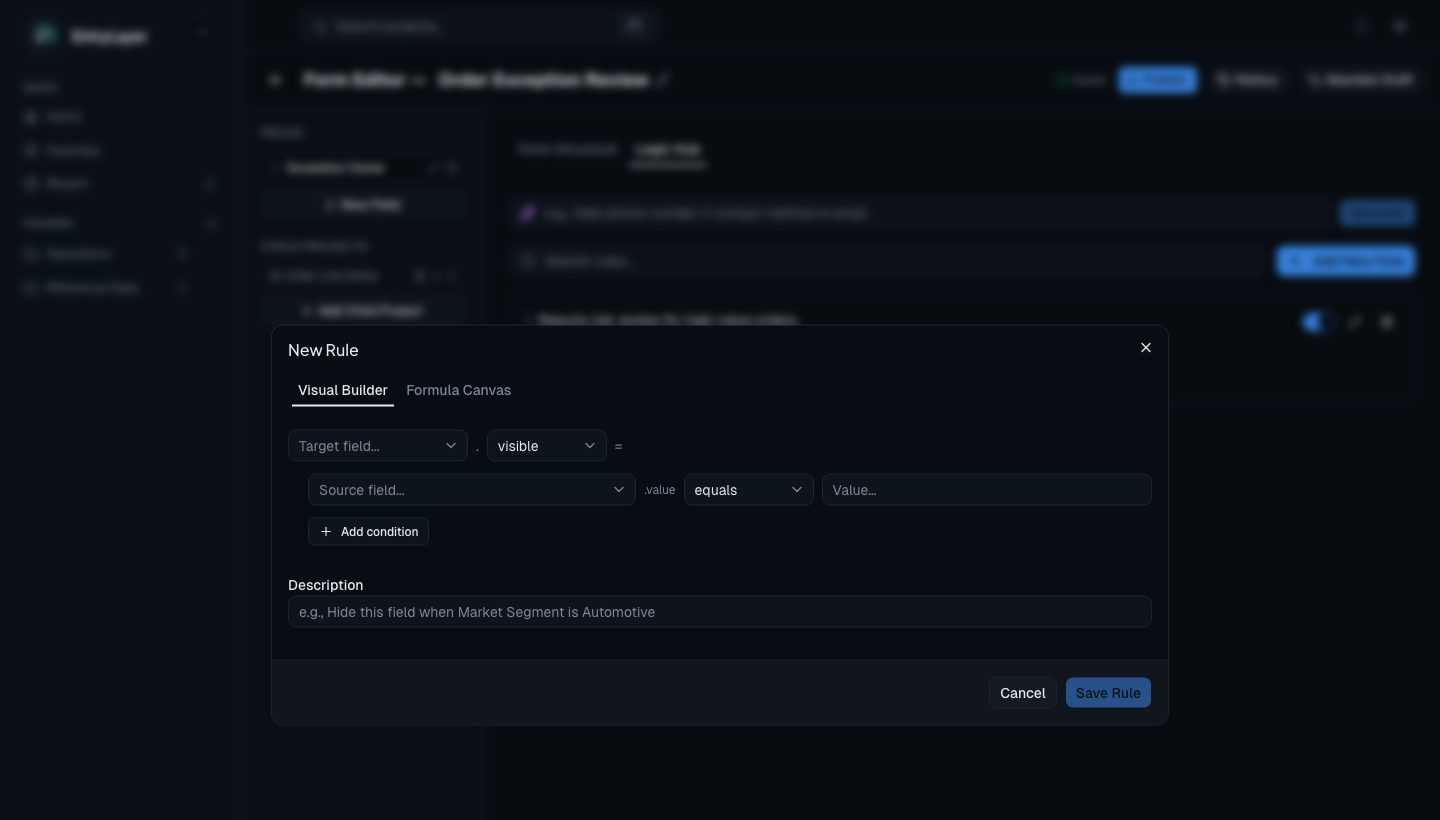
Use Validation Rules for the full builder workflow across Field Editor validation, Logic Hub rules, Preview Draft, and Logic Preview.
Workflow actions
Section titled “Workflow actions”When workflow is enabled, users may see actions such as:
- submit
- move to under review
- approve
- reject
- return to draft or reopen for editing
The available actions depend on current status, project rules, and user permissions. See Workflow States for exact state behavior.
Virtual to materialized
Section titled “Virtual to materialized”Source-connected projects can contain virtual submissions.
| Stage | Behavior |
|---|---|
| Virtual submission | Still primarily a Snowflake-backed row; no full local app-managed submission exists yet. |
| Materialized submission | EntryLayer creates local workflow, field history, access history, and managed submission state. |
Materialization happens only when an allowed workflow or edit path needs app-managed state.
Child records
Section titled “Child records”Relationship-driven child sections let users work related records inside a parent context.
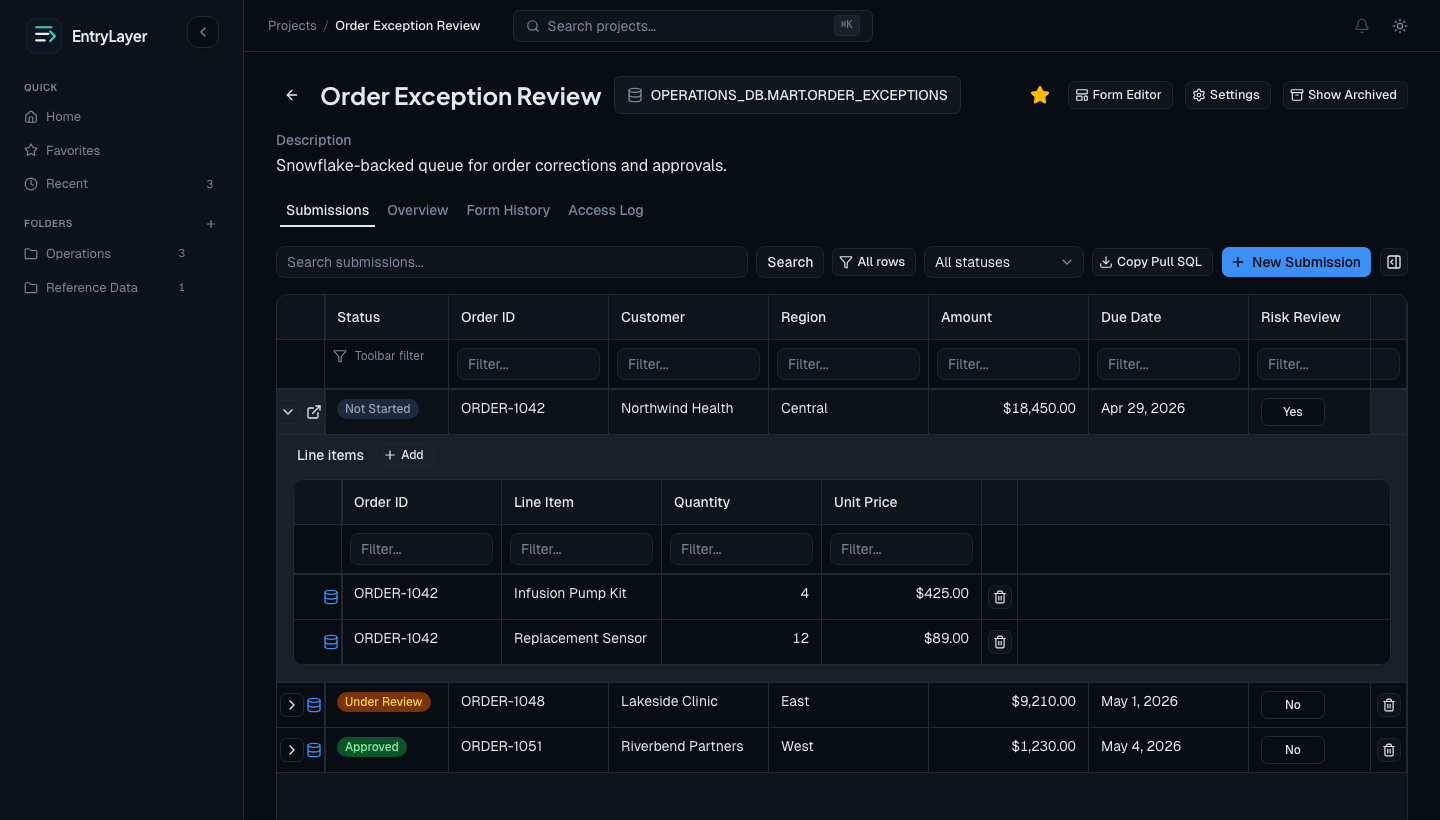
Users can:
- view related child records
- create child records after the parent exists
- open child records for deeper work
- keep nested operational work tied to the parent workflow
History tabs
Section titled “History tabs”Depending on configuration, Submission Detail can expose:
- workflow history
- field history
- access log
Use these tabs to answer who changed what, when workflow moved, and who opened or acted on the record.
Practical workflow
Section titled “Practical workflow”- Open a record from the Project Workspace.
- Review banners, status, and available actions.
- Update fields if editing is allowed.
- Take the next workflow action if appropriate.
- Work child records if the form includes relationship sections.
- Review history when you need investigation context.