
Validation Rules
Validation rules help builders make forms easier to complete correctly. They keep obvious errors out of records, guide users toward allowed values, and make complicated forms react to the work in front of the user.
EntryLayer has two related rule families:
| Rule family | Where builders configure it | What it controls |
|---|---|---|
| Field validation | Field Editor | Accepted values and static field behavior such as required, range, date/time, options, defaults, and read-only settings. |
| Form logic rules | Logic Hub | Conditional behavior such as whether a field is visible, enabled, or required based on other field values. |
Use field validation when the rule belongs to one field. Use form logic when the rule depends on another field.
When to use this guide
Section titled “When to use this guide”Use this guide when you need to:
- explain what validation rules are for
- configure required fields, numeric ranges, date/time behavior, or select choices
- create conditional visibility, enabled, or required behavior
- preview validation behavior before publishing a form
- decide whether to use Field Editor, Logic Hub, or SQL automation
Field validation
Section titled “Field validation”Field validation is the static contract for a field. It answers questions like “is this required,” “what values are allowed,” and “what shape should this value have.”
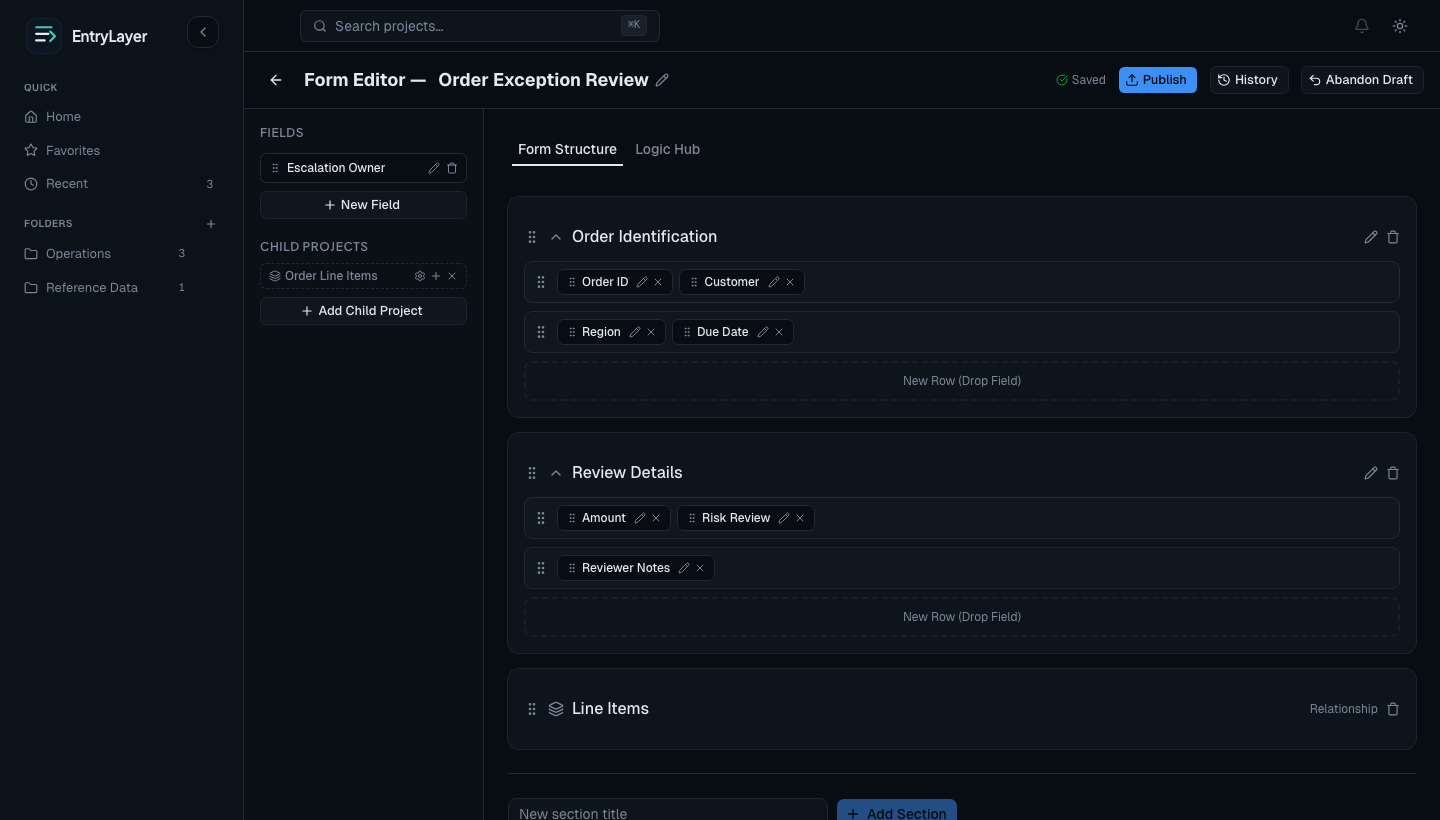
Configure field validation from Form Editor by opening a field in the Field Editor.
Common field validation includes:
| Need | Field Editor setting |
|---|---|
| A user must enter a value | Required |
| A numeric value must stay in range | Minimum value and maximum value |
| A numeric value should display as currency or percentage | Format |
| A number should round predictably | Decimal precision |
| A date should include time | Include time |
| A field should allow only known choices | Dropdown options |
| A select field should allow several choices | Allow multiple selections |
| A field should start with a value | Default value |
| A value should be displayed but not edited | Read-only or formula-driven field |
Field validation runs in the browser for fast feedback and again on the backend before save. The browser check helps users fix mistakes quickly; the backend check is the final protection before values are persisted.
Form logic rules
Section titled “Form logic rules”Form logic rules make the form react to other fields. They are managed in Logic Hub from the Form Editor.
Rules can set three properties:
| Property | Effect |
|---|---|
visible | Hides or shows a field. |
enabled | Lets a field be edited or makes it read-only. |
required | Makes a field required only when the rule is true. |
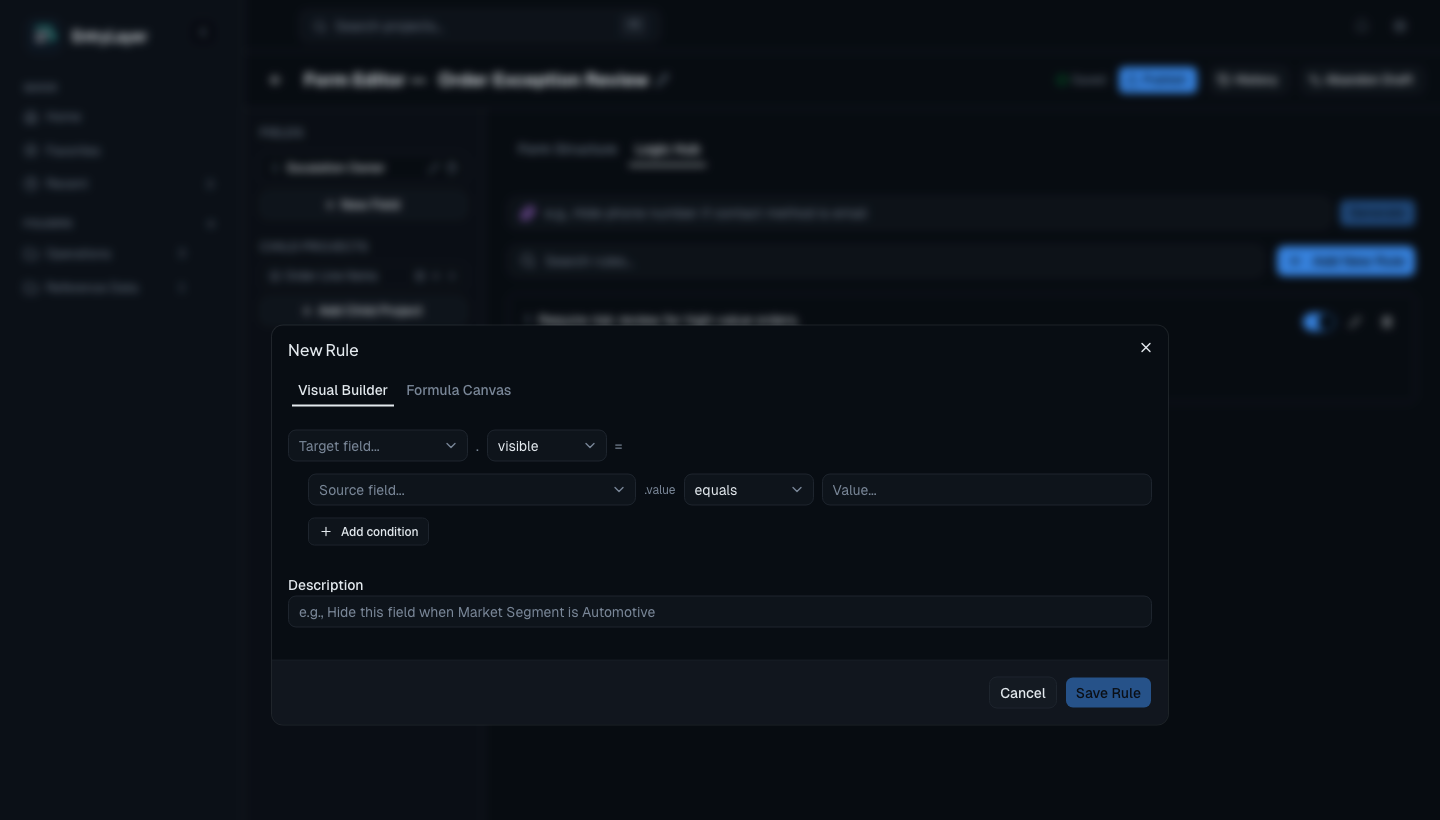
Use form logic for conditional behavior, such as:
- showing a follow-up question only when a category is selected
- locking an amount after a status changes
- requiring a reviewer comment only when status is open
Visual Builder and Formula Canvas
Section titled “Visual Builder and Formula Canvas”The rule editor has two authoring modes.
| Mode | Best for |
|---|---|
| Visual Builder | Most rules with one or more simple conditions joined by AND or OR. |
| Formula Canvas | More advanced expressions, direct expression editing, or rules generated by Cortex that need review. |
The Visual Builder creates an expression such as:
{Reviewer Comment}.required = {Status}.value == "Open"The Formula Canvas lets builders inspect or edit that expression directly. Field titles in expressions should stay stable because rules resolve fields by title when parsing expressions.
Cortex-assisted rules
Section titled “Cortex-assisted rules”Logic Hub can use Cortex to draft a rule expression from builder instructions. Use it for help with structure, then review the generated expression before saving.
Prompt safely:
- use field titles and business logic
- do not include PII, PHI, source row values, submission values, secrets, credentials, or tokens
- inspect the generated expression before saving
- preview the rule before publishing the draft
Preview before publish
Section titled “Preview before publish”Validation and logic changes are draft changes. Users do not see them until the draft is published.
Use two preview tools before publishing:
| Preview tool | When to use it | What it shows |
|---|---|---|
| Preview Draft | When there are unpublished form changes. | The draft form as a read-only record experience. |
| Logic Preview | When the form has logic rules. | How rules affect the current record. |
Preview Draft appears from Submission Detail when a form has unpublished changes. It helps builders inspect the draft layout and field behavior before publishing.
Logic Preview is available to builders when the form has rules. It is read-only and makes dynamic behavior visible:
- hidden fields appear as ghosted fields with dashed styling
- fields used by rules are marked as source fields
- fields made required by rules are called out
- tooltips explain which rules are affecting each field
Runtime behavior
Section titled “Runtime behavior”When users work records, EntryLayer combines several controls:
- field validation from the published form
- dynamic rules from the published form
- field-group permissions
- workflow state
- archive state
- Snowflake row access and masking behavior for source-backed records
If a value fails validation, the user should see a field-level error and the save should not complete. If a rule hides or locks a field, the user sees the live form state, while builders can use Logic Preview to inspect why.
Common examples
Section titled “Common examples”| Example | Use |
|---|---|
| Amount must be numeric and non-negative. | Numeric field with minimum value 0. |
| Status must be one of a known set of choices. | Select field with dropdown options. |
| Reviewer Comment is required when Status is Open. | Logic Hub rule targeting Reviewer Comment.required. |
| Follow-up field appears only for one category. | Logic Hub rule targeting the follow-up field’s visible property. |
Practical workflow
Section titled “Practical workflow”- Open Form Editor.
- Configure static field validation in Field Editor.
- Add form-level logic in Logic Hub.
- Let the draft save.
- Open Submission Detail and use Preview Draft if there are unpublished changes.
- Use Logic Preview to inspect dynamic rules.
- Publish when the behavior is validated.
Automation path
Section titled “Automation path”Most builders should use the UI first. SQL automation is useful for repeatable build workflows and Cortex-assisted administration.
Relevant SQL API commands:
Safe practices
Section titled “Safe practices”- Keep field titles stable when they are used in formula expressions.
- Preview draft and logic behavior before publishing.
- Prefer Field Editor for one-field constraints and Logic Hub for cross-field conditions.
- Use Cortex rule generation only with metadata and policy-level instructions.
- Do not put PII, source row values, submission values, credentials, secrets, or tokens into prompts.
- Remember that client-side validation is user feedback; backend validation still runs on save.